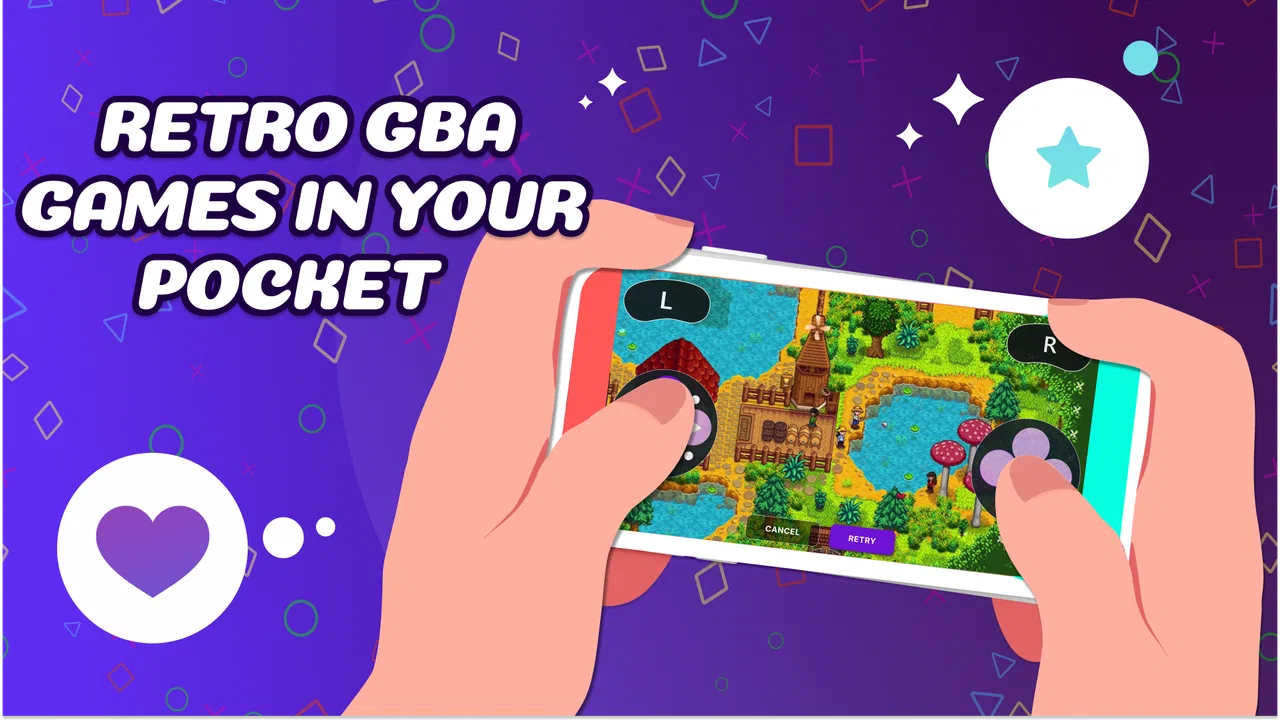
GBA Emulator: My Retro Gameboy
- 4.6
- Rating
- 1.00M
- Installs
- Free
- Price

 Analysis by App-foxy
I spent time with GBA Emulator: My Retro Gameboy as a practical way to revisit Game Boy Advance software on a modern phone. It is a free tools app from MILKY APPS CO.,LTD, aimed at people who want a straightforward handheld-style experience rather than a large gaming platform with social layers, subscriptions, or a complicated library system. My first impression was that its appeal depends less on flashy presentation and more on whether virtual controls and a small screen feel comfortable for the way you play.
The app has a 4.6 average from around 66 thousand ratings and has passed one million installs, so it is clearly reaching a substantial retro-gaming audience. It is rated for Everyone, works from Android 6.0 onward, and version 2.4.0 is the release I reviewed. Those details make it approachable for older Android devices as well as newer phones, although the quality of the experience still depends heavily on the handset, display, touch response, and the games a user chooses to run.
How the app feels to read and navigate
I focus on how the app’s navigation shapes the experience, from choosing a game to settling into a play session. I also consider a small but useful habit: keeping your game files organized so returning to a favorite takes less effort. That practical starting point leads naturally to how the emulator fits into everyday routines.
You May Also Like

 Blood Strike: 2.5 Anniversary
Blood Strike’s Loadouts Turn Every Drop Into a Tactical Gamble
A close look at Blood Strike’s custom loadouts: how fast access to signature weapons reshapes its battle royale rhythm, rewards preparation, and narrows the gap between fights.

 Pandora - Music & Podcasts
Pandora’s Music Is Easy to Start, but Harder to Recover
Pandora’s strength is its low-effort path from a seed to a station. Its weak spot is how much confidence it asks you to place in connection, setup, and quiet recovery.

 8 Ball Pool
 Is Built on Rivalries, Rematches, and Routine
A close look at the rivalries, rematches, shared routines, and unanswered safety questions that turn a quick pool match into a persistent mobile community.

 Samsung Music
’s Quiet Strength Is Playing What You Already Own
Its reach comes less from spectacle than from dependable access to a personal library. That simplicity is both the app’s strongest retention engine and its ceiling.

 AccuWeather: Weather Radar
AccuWeather Review: A Quick, Clear Forecast for Everyday Decisions
For everyday plans, the best forecast is the one you can understand quickly. AccuWeather makes rain timing, radar, and local conditions easy to act on, with a few trade-offs.

 Hill Climb Racing
Why Hill Climb Racing Still Turns Crashes Into One More Run
A tiny car, a bumpy hill and one more upgrade: Hill Climb Racing keeps resurfacing because its simple chaos makes every near-miss feel personal.
More From Our News Desk



A simple starting point for retro players
The main strength of this emulator is that it focuses on one recognizable purpose: playing Game Boy Advance titles. That narrow focus is helpful when I want to get into a game quickly instead of sorting through a crowded entertainment app. Someone familiar with emulators will understand the basic workflow, while a newcomer can approach it as a digital version of a classic handheld rather than as a general-purpose gaming service.
Navigation matters more than it might seem in an emulator. A player typically moves between selecting a game, entering the play screen, and returning to the emulator interface. Keeping those steps mentally separate makes the app easier to understand: the library or file-selection stage is about choosing what to play, while the game screen is about controls and visibility. I found that this distinction is especially useful when introducing the app to someone who remembers the original hardware but has never used an emulator.
The visual design is most successful when I treat it as a functional tool rather than expecting a polished console dashboard. Text and icons need to be read on a phone, and the amount of information visible at once can affect how comfortable the app feels. On a smaller display, I prefer holding the phone in a stable orientation and avoiding unnecessary movement between menus. That is not an accessibility feature in itself, but it is a practical habit that reduces visual and navigational effort.
What a first-time user should prepare
The most important preparation is understanding that an emulator is not the same thing as a game collection. The app provides the environment for running compatible Game Boy Advance software, but the user still needs to handle game files responsibly and legally. This distinction can surprise people who expect to open the app and immediately see a complete catalog of famous titles. For a smoother start, I would organize legally obtained files in one clearly named folder before opening the emulator.
A second useful step is to test one game before building a large library. That lets me check whether the phone’s screen size, touch response, orientation, and sound are comfortable. It also prevents a common mistake: assuming that a highly rated emulator will feel equally good on every device. The app may be technically suitable while still being awkward for a particular person because of hand position, glare, or the placement of on-screen buttons.
For readers who are not comfortable browsing files, this preparation can be the biggest learning hurdle. I would recommend starting with a small, clearly labeled collection and changing one setting or behavior at a time. That makes it easier to identify whether a problem comes from navigation, the game file, the phone, or the controls, rather than treating every issue as a failure of the app.
Readable play is about more than text size
Game Boy Advance games often use small menus, compact dialogue, and pixel-based artwork. The emulator cannot completely change the visual language of those original games without affecting their character. In my experience, the practical question is whether the phone offers enough screen area and contrast for the player’s eyes. A larger display can make text easier to follow, but it may also make the virtual controls harder to reach with one hand.
I get better results by adjusting my physical setup before blaming the software. Increasing the phone’s general display brightness, avoiding direct reflections, and playing against a plain background can make a surprisingly large difference. If a player has difficulty reading small text, turn-based games and titles with slower dialogue are usually more forgiving than fast action games. That is a choice of game as much as a choice of emulator.
Touch controls and motor comfort
Virtual controls are the central trade-off. A physical Game Boy Advance has raised buttons that can be located by touch, while a phone screen offers no tactile confirmation. I can see the on-screen controls, but I cannot feel their edges in the same way. This matters most in platform games, racing games, and any title that asks for repeated, precise combinations.
For relaxed sessions, the controls are adequate when I support the phone with both hands and keep my thumbs near the main action area. For longer sessions, the same arrangement can become tiring because the hands must hold the device while also pressing a flat surface. Players with limited finger movement, tremors, joint pain, or reduced grip strength may find slower games much more manageable than reflex-heavy ones. The app is therefore more inclusive when used for exploration, role-playing, puzzles, or turn-based play than for demanding action.
One practical workaround is to choose games around the person’s movement range rather than forcing every game to fit. If repeated tapping causes discomfort, I would avoid titles built around rapid button presses and use shorter sessions with deliberate pauses. A stand can also reduce the need to grip the phone continuously, although it does not solve the lack of tactile feedback. These are small changes, but they can determine whether retro gaming feels inviting or exhausting.
Sensory considerations during play
Retro games combine bright pixel art, quick animation, sound effects, and repeated visual patterns. That style is part of their charm, but it can be intense for players who are sensitive to flashing, motion, or layered audio. I would approach each game individually and begin with a short session in a calm environment. If the screen feels visually busy, choosing a slower title and reducing surrounding distractions is more useful than expecting the emulator alone to transform the presentation.
Sound is another situational issue. Playing with audio in a quiet room may be enjoyable, but it can be inconvenient in shared spaces or uncomfortable for people sensitive to repetitive effects. Using the phone at a considerate volume, or playing silently when appropriate, makes the app easier to fit into daily life. I would also avoid assuming that headphones are automatically better: some users may find them isolating, uncomfortable, or too intense.
The app works best when the player controls the environment around it. A stable chair, even lighting, and a screen positioned at a comfortable distance can reduce strain. These suggestions are not replacements for built-in accessibility options, but they are realistic ways to make a touch-based emulator less demanding when a person’s needs change from day to day.
Using it in different everyday situations
A retro game can be a good fit for a quiet break, but the phone’s screen, your surroundings, and the kind of game all affect whether that break feels relaxing. I look at ways to make short sessions more comfortable and when a different device may be the better choice.
A short commute or waiting-room session
My favorite use case is a brief waiting period when I want something more focused than scrolling through social media. A Game Boy Advance game suits that situation because many titles can be played in small chunks. I would choose a game that does not require a long uninterrupted sequence, keep the phone at a comfortable angle, and stop before hand fatigue begins. The app’s free entry point makes it easy to try this routine without committing money upfront.
There are limits in public spaces. Glare can make pixel graphics difficult to read, touch controls can feel less precise while standing, and sound may not be appropriate. For those reasons, I would not call this an ideal one-handed commuting app. It is better for a seated pause where I can use both hands and keep the screen steady.
Sharing retro games with family
The Everyone age rating makes the app approachable for family settings, but the rating should not be confused with every individual game being suitable for every household. The content experience depends on the software being played. When sharing the emulator with a child or an older relative, I would select the game first, demonstrate the basic controls, and let the person try the opening section at their own pace.
This is where the app can bridge generations. Someone who remembers a classic handheld may recognize the game structure immediately, while a younger player may appreciate the compact rules and clear objectives. The main barrier is physical: passing a phone back and forth is less comfortable than handing over a dedicated console, and the person holding it may need help finding the virtual buttons without looking away from the action.
Using an older Android phone
Because the minimum operating system is Android 6.0, the app is not limited to the newest phones. That is useful for someone who has an older spare device and wants to dedicate it to retro gaming. In practice, I would still check battery health, screen condition, touch accuracy, and available storage before treating that phone as a reliable handheld. Compatibility with the operating system does not guarantee that an aging battery or damaged touchscreen will be pleasant to use.
A spare phone can also improve access for households that do not want the main phone occupied during play. It allows a player to set up a stable stand, keep the display at a preferred brightness, and avoid interruptions from everyday notifications. The trade-off is that a second device adds another battery to charge and another screen to maintain, so this arrangement makes most sense for regular retro players rather than occasional users.
Where usual alternatives may be better
Compared with original hardware, this app is more convenient because one phone can replace carrying a separate handheld. It is also easier to enlarge the overall viewing area than with an aging physical screen. However, original hardware wins for tactile controls, instant familiarity, and the feeling of holding a purpose-built device. If physical buttons are essential to your enjoyment or comfort, a dedicated handheld or compatible controller is likely the better choice.
Compared with a broader multi-system emulator, this app’s narrower identity may feel less powerful, but it can also feel less overwhelming. Someone who only wants Game Boy Advance gaming may prefer not to navigate systems and settings unrelated to that console. On the other hand, a user who wants one application for several retro platforms may find a wider emulator more practical, even if it requires more setup and learning.
Compared with a cloud-gaming service, this approach is less dependent on a continuous connection and better suited to classic games that do not need remote servers. Cloud gaming may offer newer software and more advanced graphics, but it also introduces network conditions and a different control experience. I see this emulator as a local, focused option for people who value simplicity and nostalgia over modern presentation.
Costs and the parts that need attention
The app is free to install, while in-app purchases range from $1.99 to $29.99 per item. That makes the initial trial accessible, but I would still review any purchase prompt carefully before confirming it. A free download is not the same as a completely cost-free experience, and the price range means users should understand what they are paying for and whether it improves their particular workflow.
The developer is MILKY APPS CO.,LTD, and the app’s popularity suggests that many people are willing to try its approach. Popularity does not remove the need for personal testing, especially for users with specific motor or sensory requirements. I would spend a few minutes checking the controls and reading game text before deciding whether it deserves a permanent place on the phone.
Remaining barriers for different abilities
The largest barrier is the touchscreen itself. A person who relies on tactile landmarks, needs very large targets, or finds sustained gripping difficult may not get the same comfort as someone using physical controls. The emulator format also places the burden of accessibility partly on the selected game and partly on the phone’s own display settings. That can be manageable for some players, but frustrating for others.
Another barrier is the setup around game files. Even when the app is easy to open, locating and organizing legally obtained software can be unfamiliar. A user with low vision, limited dexterity, or little file-management experience may need assistance before reaching the actual game. I would treat that setup as part of the accessibility decision, not as a minor detail.
There is also a social barrier: a phone is a personal communication device first. Notifications, calls, battery-saving behavior, and changing surroundings can interrupt a session. A dedicated handheld avoids some of that friction. If uninterrupted play, tactile certainty, or shared couch gaming is the priority, another device may serve the person better than this app.
My inclusive verdict
I recommend GBA Emulator: My Retro Gameboy to Android users who want a focused way to revisit Game Boy Advance gaming and are comfortable with touch controls and basic file organization. Its free starting point, broad Android compatibility, and straightforward retro purpose make it a sensible option for short sessions, older spare phones, and family members who already understand classic handheld games.
I would be more cautious for anyone who needs physical buttons, has difficulty reading compact pixel text, experiences discomfort from repeated tapping, or is sensitive to fast visual and audio effects. Those players may still enjoy carefully chosen games and shorter sessions, but a physical controller or dedicated handheld could be a more inclusive solution. The best experience comes from matching the game, phone setup, and control method to the player’s abilities rather than assuming one emulator fits everyone.
Overall, I see this as a useful retro tool rather than a universal replacement for a Game Boy Advance. It earns its place by making classic handheld play convenient on a device many people already own. Its limitations are equally clear: touch controls lack physical feedback, small-screen games can challenge readability, and the setup process may require patience. If those trade-offs fit your situation, this is an easy app to try; if they do not, choosing hardware with real buttons is the more comfortable and inclusive decision.
FAQs for GBA Emulator: My Retro Gameboy
01What is GBA Emulator: My Retro Gameboy?
GBA Emulator: My Retro Gameboy is a mobile emulator designed to let users play compatible Game Boy Advance-style games on a smartphone or tablet. It generally provides an on-screen control layout, game loading options, save and restore features, and display settings intended to recreate the experience of using a classic handheld console. The exact functions may vary by device and app version.
02Does GBA Emulator: My Retro Gameboy include games?
Usually, an emulator is the software that runs game files rather than a collection of copyrighted games included with the app. You may need to provide your own legally obtained game backups, depending on the application’s supported format and local copyright laws. Before downloading or importing anything, check the app’s instructions and make sure you have the legal right to use the files.
03Is GBA Emulator: My Retro Gameboy easy to use for beginners?
The app is generally aimed at casual retro-gaming fans as well as experienced emulator users. After installation, the main tasks are typically selecting a compatible game file, adjusting the virtual controls, and creating a save. Touchscreen buttons can take a little time to get used to, especially in action games, but customization options may improve comfort on different screen sizes.
04Can I save my progress in GBA Emulator: My Retro Gameboy?
Most emulators of this type support more than one way to preserve progress, such as the game’s built-in save system and emulator save states. Save states can be convenient when you want to continue from an exact moment, while in-game saves are usually more compatible with normal gameplay. It is still wise to create occasional backups because updates, file changes, or device problems may affect saved data.
05What should I check before downloading the emulator?
Before installing GBA Emulator: My Retro Gameboy, review its required Android or iOS version, storage permissions, advertising policy, privacy information, and supported game formats. Also confirm whether external game files are required and whether the controls, sound, and performance work well on your device. Emulator quality can differ considerably between phones, so checking recent user feedback is recommended.
Pros
- Simple controls make classic Game Boy games easy to pick up.
- Save states let you pause and resume progress quickly.
- Supports landscape and portrait play for flexible viewing.
- Low resource usage works well on many older Android devices.
- Useful for revisiting retro titles without carrying extra hardware.
Cons
- Game compatibility may vary between different ROM files.
- Touch controls can feel imprecise during fast platforming sections.
- Some features may be restricted or interrupted by advertisements.
- Playing copyrighted ROMs without permission can create legal concerns.
- The retro visuals may look small or blurry on larger screens.

GBA Emulator: My Retro Gameboy
Gallery